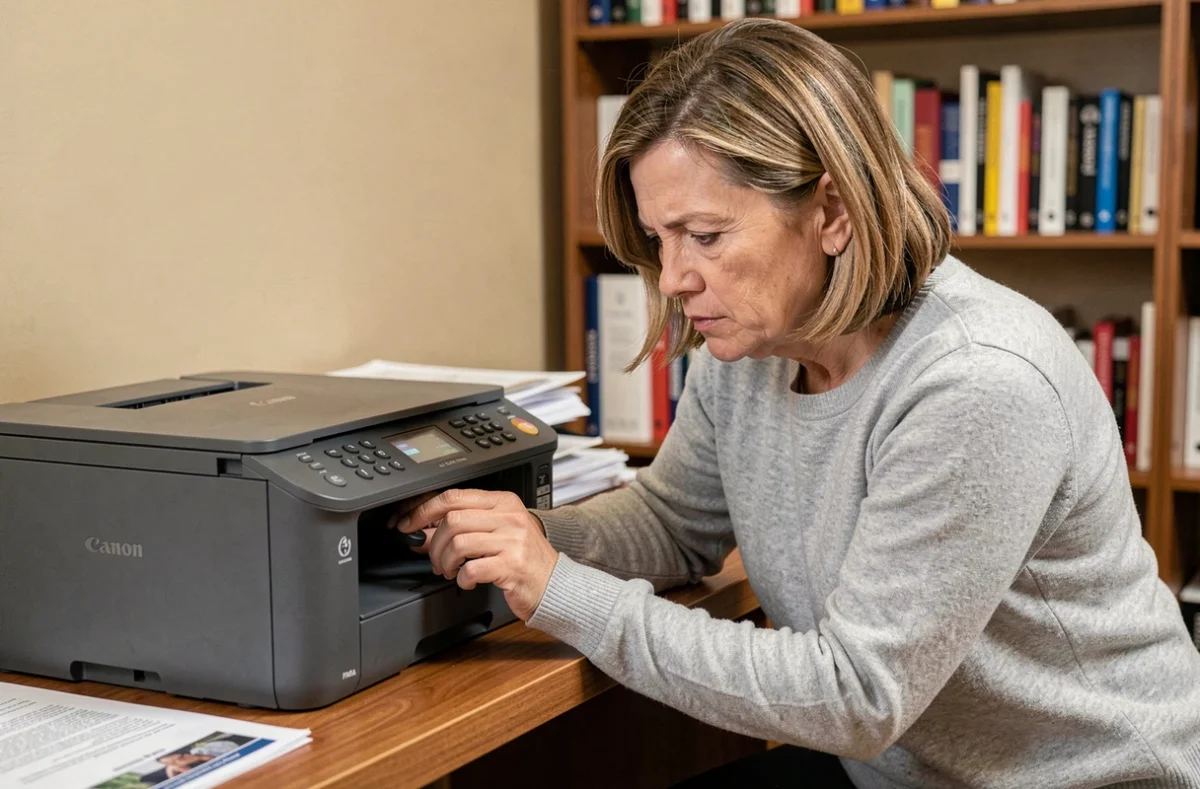
The printer produces a blank page, the orange light flashes for no apparent reason, or the queue remains stuck on a document sent the day before. On a Canon Pixma, these issues can often be resolved with a reset, but you need to choose the right method to avoid unnecessarily losing your settings. Here are the specific procedures, organized by type of problem.
Network error after changing your router or Wi-Fi password
You switch internet providers or update your router password, and your Canon Pixma refuses to connect. The natural instinct is to reset everything, but in most cases, resetting only the LAN settings is enough. Available from the network setup menu, this option erases only the Wi-Fi data without affecting your printing preferences or scanning profiles.
The exact procedure varies by model. On Pixma printers with an LCD screen, you can usually access it through Setup, then Device settings, then Network settings, then Reset LAN settings. On models without a screen, a button combination (often holding down the Wi-Fi button) activates network setup mode.
A common pitfall occurs when you switch from a Wi-Fi connection to a USB cable. The printer works over USB, but the computer continues sending jobs to the old network port. Before resetting anything, first check the operating system’s printing settings to make sure the selected port matches the active connection method. In Windows, you’ll find this option under Control Panel, then Devices and Printers, then Printer Properties, Ports tab.
This check takes thirty seconds and can save you from a full reset that would require you to reconfigure all your settings. You can also reset a Canon Pixma printer when you’re having printing problems in several ways, depending on how severe the issue is.

Full Canon Pixma reset: two methods depending on the model’s screen
When the problem goes beyond the network connection (recurring error codes, print jobs stuck in a loop, erratic behavior after a firmware update), a full reset restores the printer to its factory settings.
Models with a touchscreen or LCD screen
Navigate to Setup, then Device settings, then Reset all. The printer will ask you to confirm. Once confirmed, it restarts with its factory settings. All Wi-Fi profiles, print quality settings, and scanning settings are erased.
Models without a screen
This method involves a sequence of button presses. The most common procedure for entry-level Pixma models is:
- Turn off the printer, then unplug it from the power outlet for about thirty seconds
- Plug it back in, then press and hold the Stop button (a triangle inside a circle) while pressing the Power button
- Release the Power button while continuing to hold Stop, then press the Power button a specific number of times (the number varies by model)
- Release all the buttons and wait for the printer to reset
Each Pixma model has its own button sequence. Using the wrong number of presses can activate service mode instead of restoring factory settings. Check the manual for your specific model before attempting this procedure.
Canon Pixma error code 5B00: resetting the ink absorber counter
Error code 5B00 indicates that the internal ink absorber is full or that its counter has reached the programmed limit. This component (a kind of sponge pad) collects residual ink during printhead cleaning. The printer blocks all operations while the error code persists.
Resetting the counter without addressing the physical absorber only masks the problem. If the pad is actually saturated, ink can overflow inside the chassis and damage the circuitry. Two separate steps are required: replacing or cleaning the absorber, then resetting the software counter.
Cleaning the absorber involves partially disassembling the printer to access the pad, rinsing it with lukewarm water, and letting it dry completely. The counter is reset using a service utility or a button sequence in maintenance mode. On some models, this procedure requires a qualified technician to avoid making the problem worse.
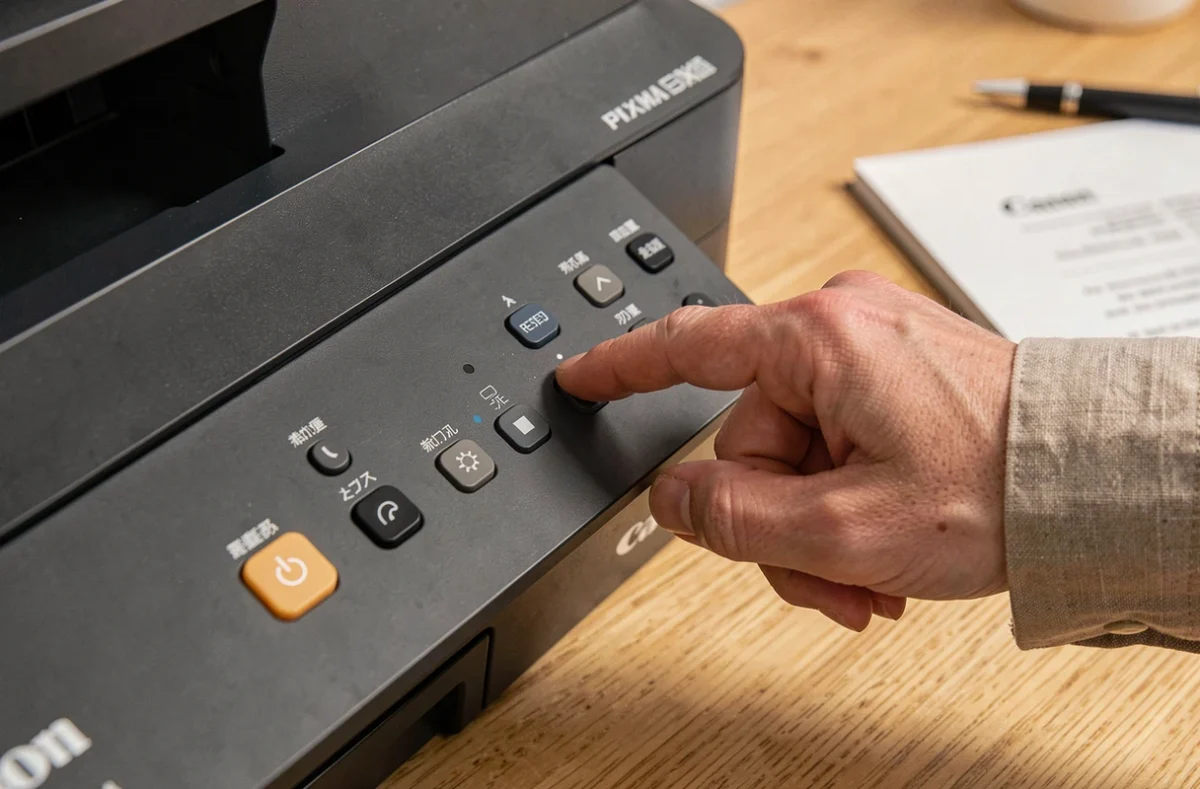
Canon Pixma power reset: the first troubleshooting step
Before trying any software-based fixes, a simple power cycle can resolve some issues. Turn off the printer using its Power button, unplug the power cable from the outlet (not just from the printer), and wait at least thirty seconds. This gives the internal capacitors time to discharge completely.
This method clears the buffer memory where stuck print jobs accumulate without affecting saved settings. It’s the first thing to try if you encounter:
- A print queue that won’t clear even after canceling the jobs
- A steady orange light with no identifiable error code
- A printer that no longer responds to commands sent from the computer
- A paper jam that has already been cleared but whose error message remains on the screen
If the problem returns after restarting, move on to a software or hardware reset, depending on the nature of the issue. The steps are always the same: power reset first, then a targeted network reset, followed by a full factory reset.
When resetting isn’t enough
Some problems can’t be fixed with any kind of reset. A printhead that’s physically clogged after months of disuse won’t be unclogged by a software reset. Persistent horizontal streaks after several cleaning cycles from the printer menu point to a printhead that’s nearing the end of its life.
Paper feed problems (sheets pulled in crookedly or multiple sheets feeding at once) are caused by worn feed rollers. No reset can compensate for mechanical wear on these parts. On Pixma models with a printhead built into the cartridge, simply replacing the cartridge also replaces the printhead. On models with a fixed printhead, replacement is more expensive and, depending on the age of the printer, buying a new one may make more sense.
The best approach is to troubleshoot by elimination: start with a power reset, then check the ports and network, and use a factory reset only as a last resort. If the problem persists after these steps, the cause is probably hardware-related.